What is it?
The SunShade Tracer Android app is an augmented-reality sun tracker built for rock climbers. It uses your phone's camera and compass to show the sun's path across the sky in real time, overlaid on the live camera view.
Point your phone at the skyline from the base of a climbing route and you can see exactly when and where the sun will appear or disappear behind the terrain — for any date of the year.
By tracing the skyline, you capture a terrain profile that gets uploaded to the shade calculator on this website. Once uploaded, anyone can look up that route's sun and shade times without needing the app.
Live sun arc overlay
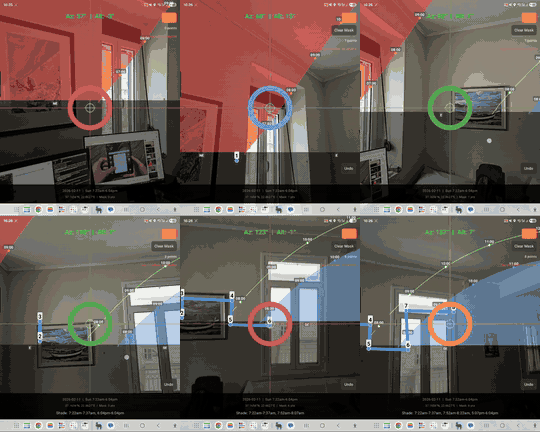
The camera view shows three sun arcs drawn across the sky:
- Summer solstice (orange dashed) — the highest arc the sun takes all year (June 21)
- Winter solstice (blue dashed) — the lowest arc the sun takes all year (December 21)
- Selected date (solid yellow) — today's sun path by default, with hour markers showing the time of day
The area between the summer and winter arcs is where the sun travels throughout the year. This is the zone where mapping the terrain matters — if the terrain extends above the summer arc, it will always block the sun in that direction.
A large yellow ring marks the sun's current real-time position, updating every 30 seconds so you can verify the overlay lines up with reality.
Capturing a terrain profile
Stand at the base of the route you want to profile. The app uses GPS for your location and the phone's compass and gyroscope to track which direction you're pointing.
Made a mistake? The undo button removes the last point, or use Review Points to browse through your captured photos and delete individual points.
Reticle colour guide
During tracing, the crosshair reticle changes colour to tell you where you're pointing relative to the sun arcs:
Saving & uploading
When you're happy with the capture, tap “Save Profile”. You'll be asked to enter the region, crag name, and route name, and choose the crag mode:
- Morning — the crag gets shade in the morning and sun later (e.g. west-facing)
- Afternoon — the crag gets sun in the morning and shade later (e.g. east-facing)
The profile is saved locally on your phone. You can re-open saved profiles later with “Load Profile” — handy for capturing offline and uploading when you have Wi-Fi.
Tap “Upload” to send the profile and all captured photos to the website. Once uploaded, the route appears instantly in the shade calculator, complete with terrain photos that can be overlaid on the sky chart.
What gets captured
Each terrain profile consists of:
- GPS coordinates — latitude, longitude and timezone
- Terrain points — a series of azimuth/altitude pairs that trace the skyline. These are resampled to 0.5° resolution for smooth visualisation.
- Camera snapshots — a photo at each trace point, used for the “Show photos” overlay on the sky chart
The terrain data is what makes the shade calculator accurate at the route level rather than just the crag level. Because each profile is captured from the exact base of the climb, it accounts for overhangs, trees, nearby buildings, and any other obstacles that satellite data would miss.
Instant shade schedule
As soon as you've captured two or more points, the app calculates the shade schedule for the selected date. The sun arc is recoloured — yellow where the sun clears the terrain, grey where it's blocked — and the shade times are displayed at the bottom of the screen.
This gives you an instant answer right at the crag: “Is this route going to be in the sun or the shade at 2pm today?”
Help build the shade database
The shade calculator is only as complete as the profiles that have been uploaded. Every route you scan adds to the database and helps other climbers plan their days.
Capturing a profile takes about two minutes per route. If you're at a crag with 20 routes, scanning the whole wall takes half an hour — and the data is useful for years.
The app is currently available for Android.
Tips for accurate captures
- Stand at the base of the route, not metres away. The terrain profile changes with your position.
- Hold the phone upright (portrait orientation). The compass is most accurate when the phone is roughly level. If the tilt is too extreme the app will show an “Azimuth unstable” warning.
- Use the reticle colour as a guide. Green means you're in the zone that matters for shade calculations.
- More points on complex terrain, fewer on smooth ridges. The app interpolates between points, so a gently sloping ridge needs only a few.
- Check the photo review after capturing to make sure each point looks right before uploading.